Leveraging Shazam for Instant Music Recognition on Any Android Device
Google Pixel phones have won praise for many features, but the Now Playing functionality is a standout. However, it seems Google isn't expanding this handy tool to other Android devices anytime soon. The good news? Many users likely have a powerful alternative in Shazam, an app that has carved a niche in music identification.
Shazam has been around for ages and serves as my primary tool for discovering songs on the go. Typically, you would open Shazam and hit a button to start identifying a track. Yet, many might not realize it contains an Auto Shazam feature that closely mirrors the Now Playing function and is available on virtually any Android device.
Understanding Now Playing
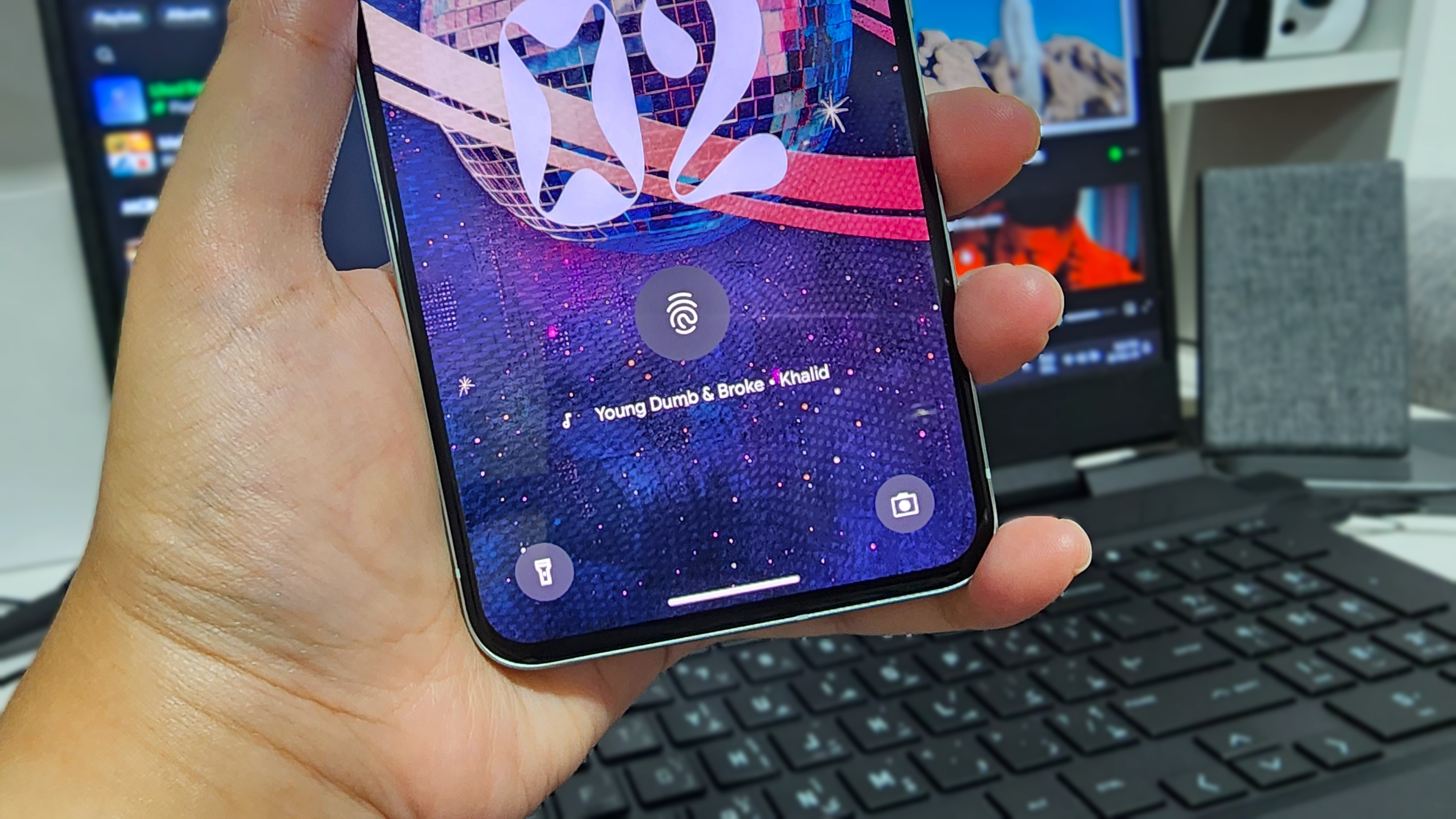
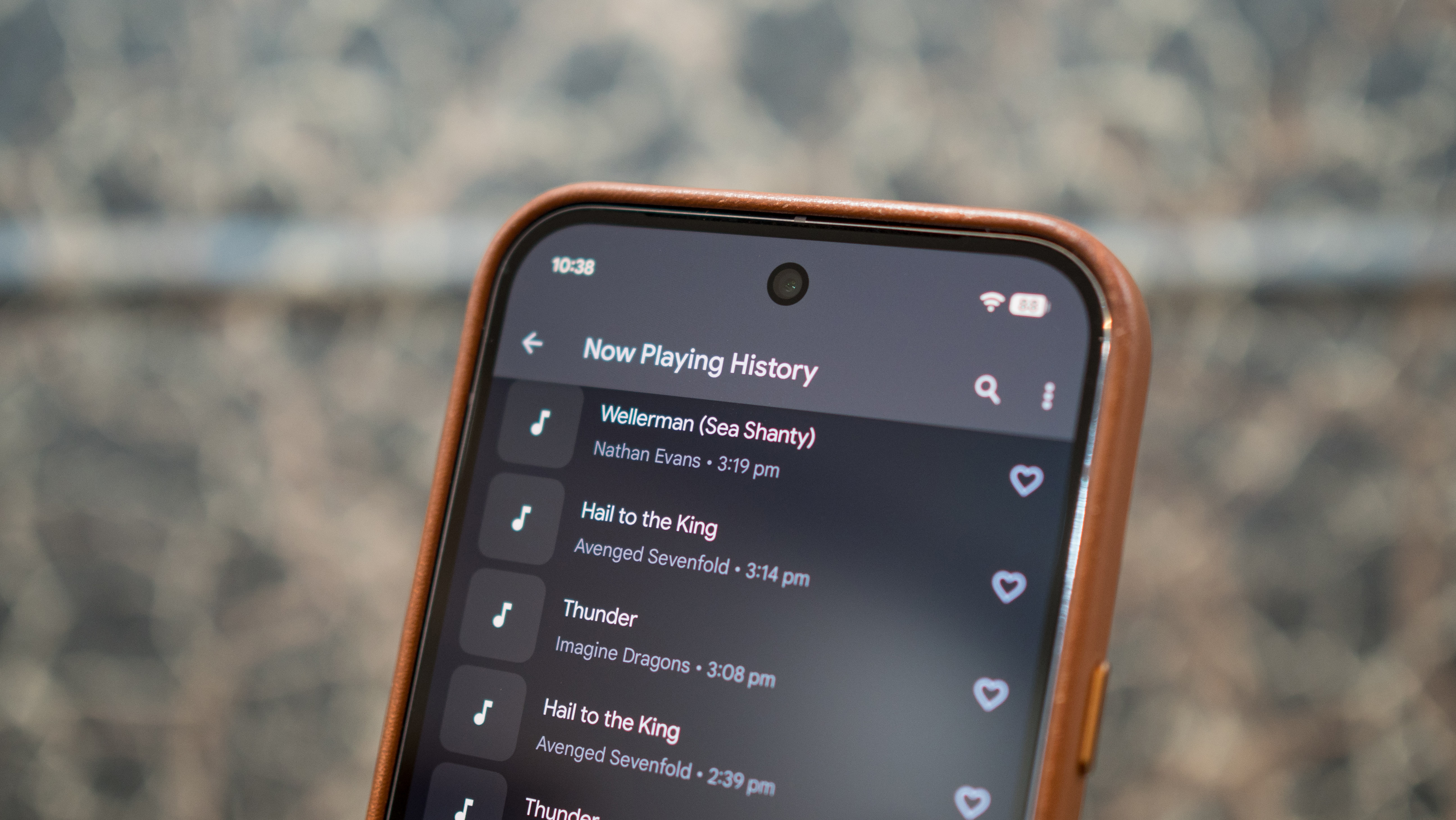
If you're a Pixel smartphone user, you’re likely familiar with Now Playing. This built-in software operates quietly in the background, identifying music simply by picking up sounds through the phone's microphones. There's no need for manual intervention—if music is nearby, the song title will often appear on your lock screen.
The functionality has existed for a while, yet its subtlety means that it's frequently overlooked. What’s particularly appealing is that it operates completely on-device, minimizing battery drain and data usage. For moments when you're curious about a song you’ve heard, you can easily check the history of tracks recognized by your phone.
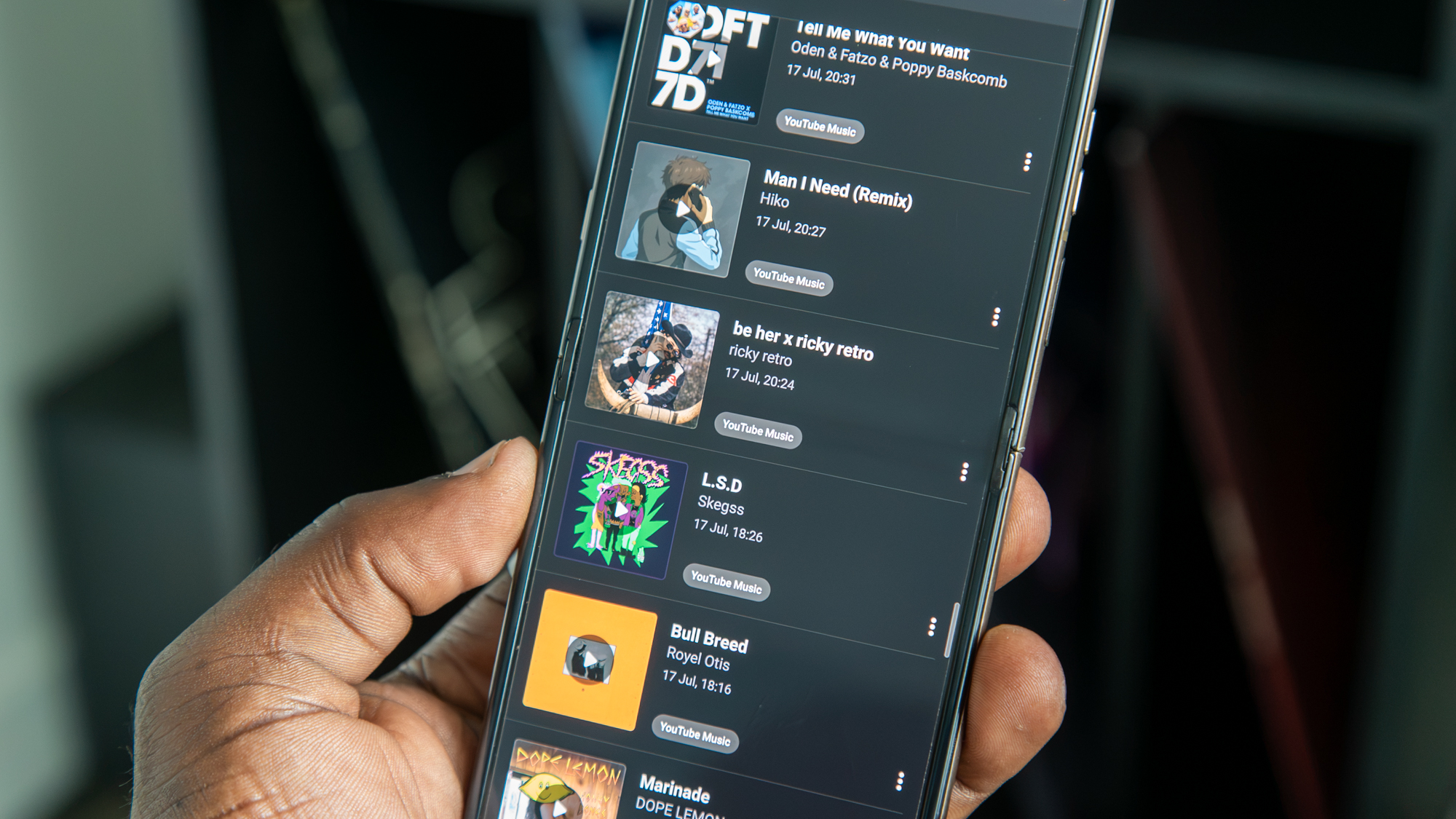
While Auto Shazam mimics this functionality by continually identifying music in the background, it has some drawbacks. Being a third-party app, it often doesn’t integrate as smoothly as Now Playing and may clutter your notifications unless modified. Furthermore, it requires internet access, which can increase battery consumption and data usage.
Activating Auto Shazam
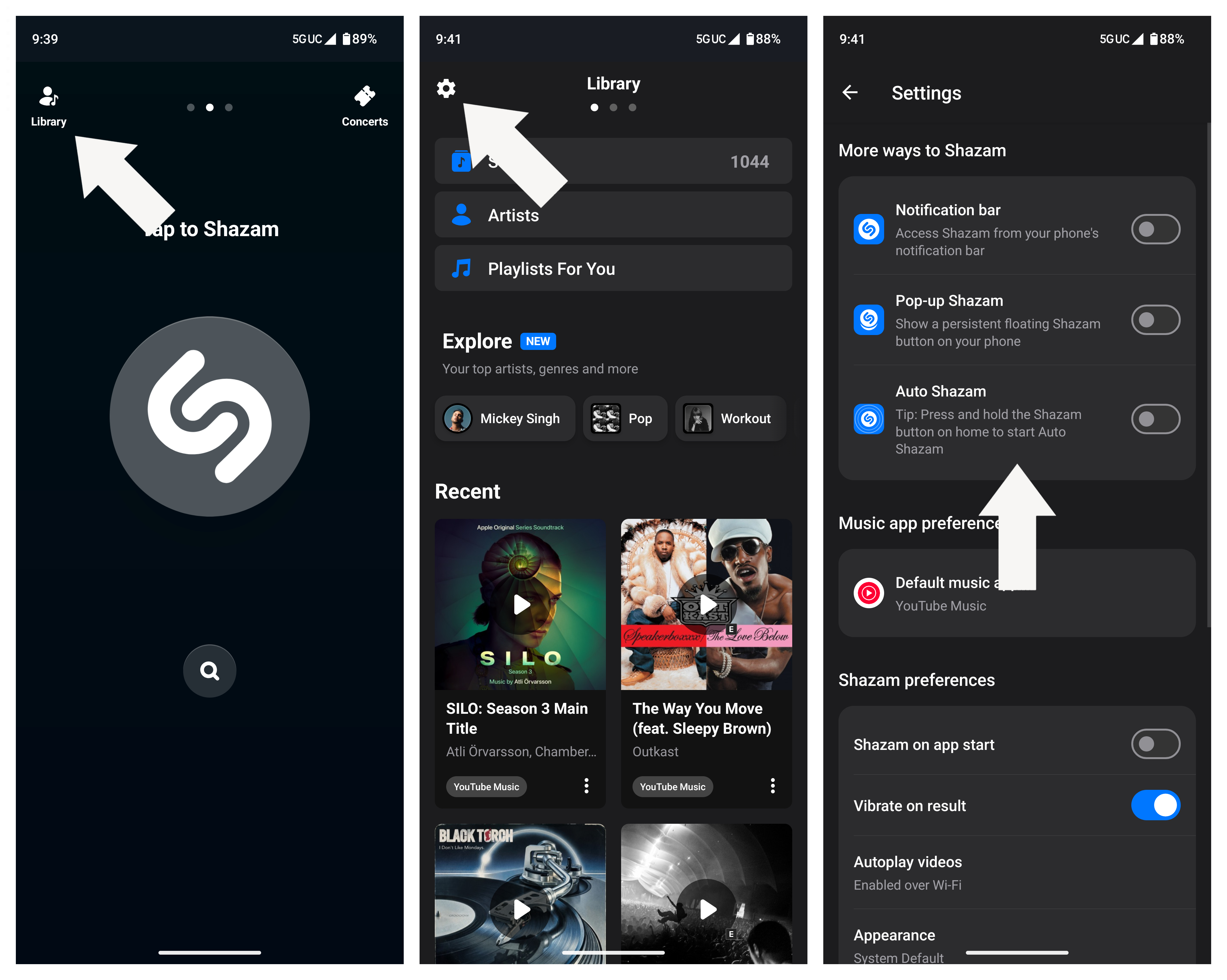
1. Launch Shazam and select Library.
2. Tap the Settings icon in the upper-left corner.
3. Activate the Auto Shazam toggle.
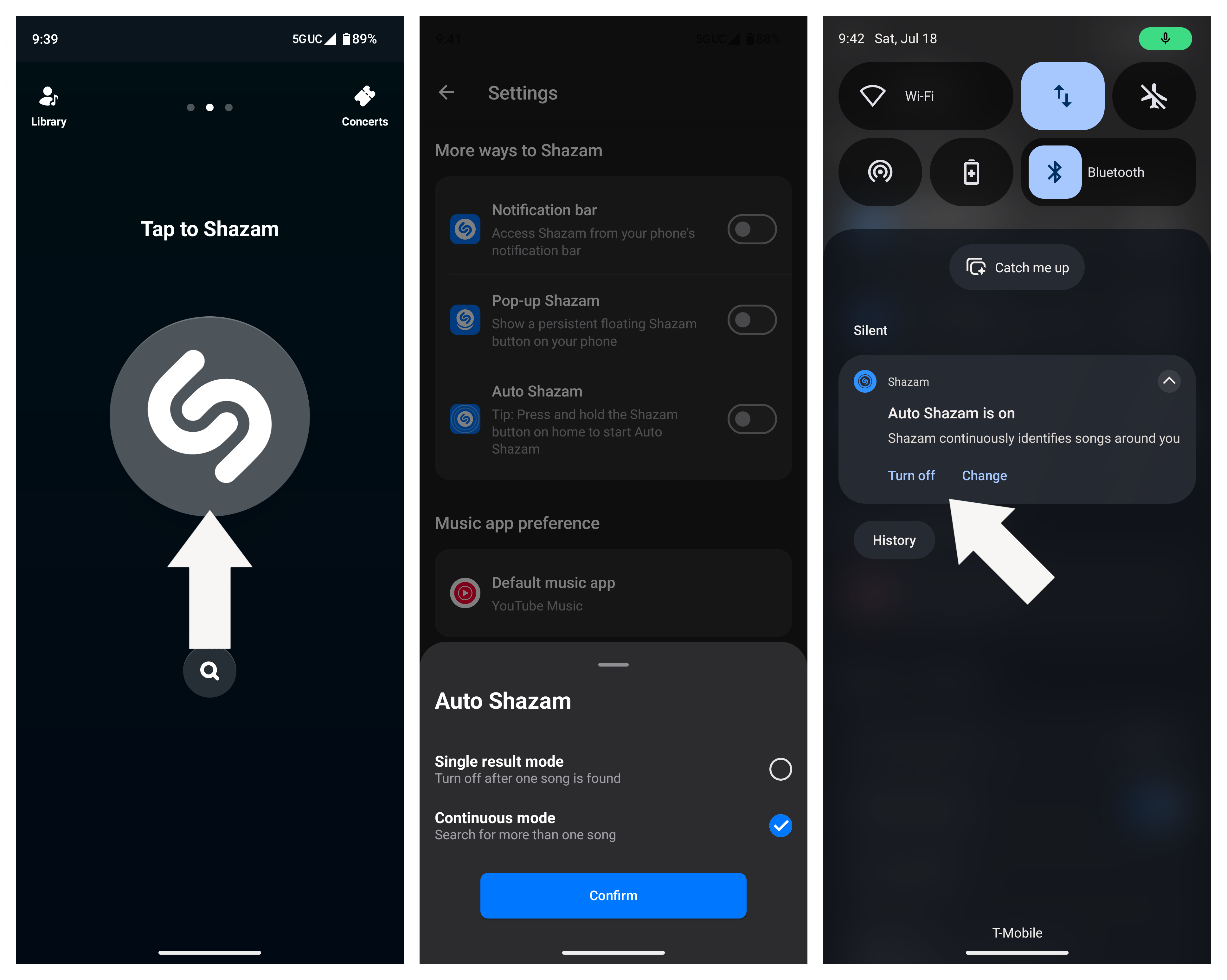
Note: Alternatively, you can press and hold the Shazam button on the home screen to turn on Auto Shazam.
4. A pop-up will appear to let you choose whether to end Auto Shazam after one song or keep it ongoing.
5. Your notification panel will show a persistent reminder that Auto Shazam is active. You can tap Turn off to disable it or select Change to adjust settings.
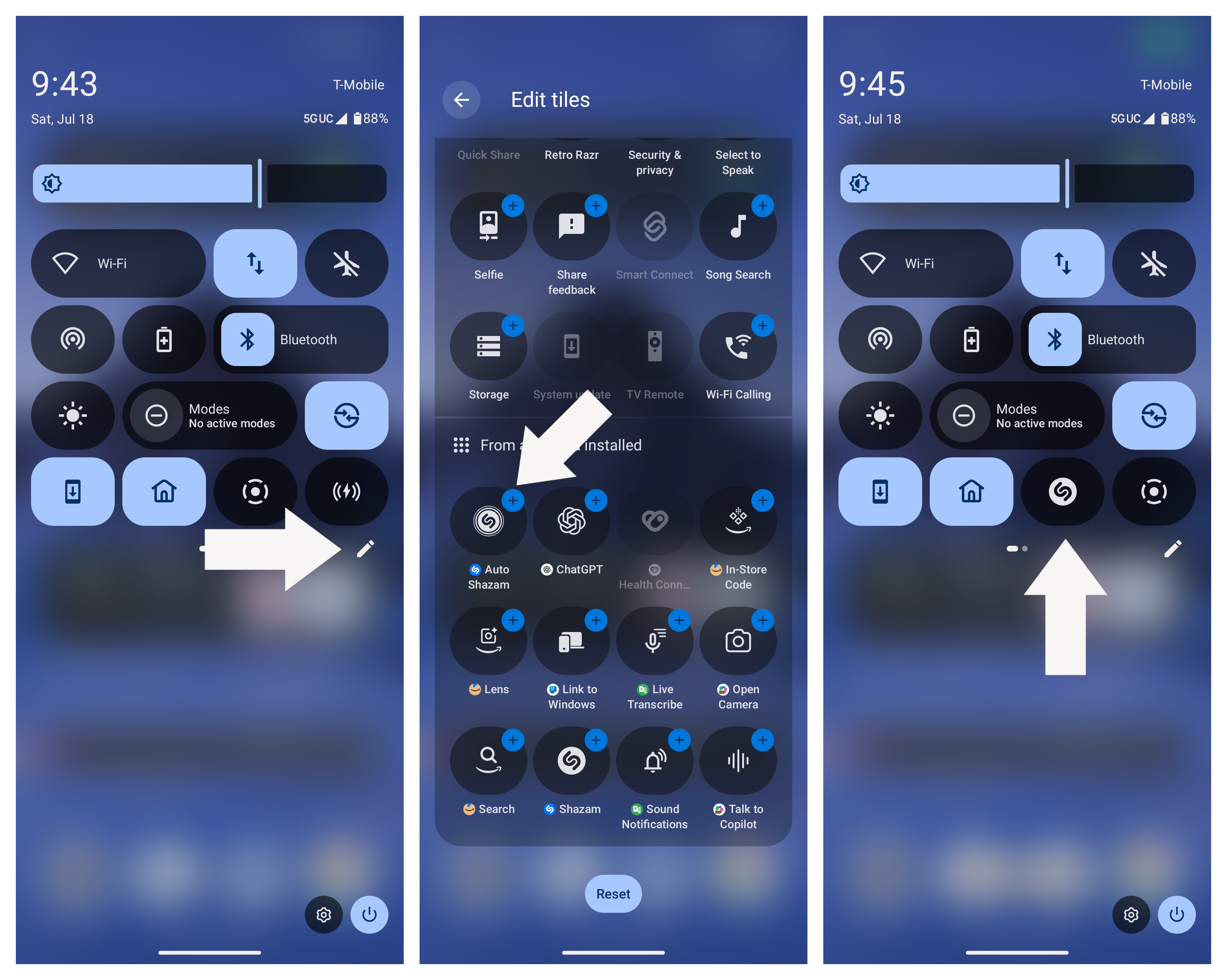
Also, consider placing an Auto Shazam tile in your Quick Settings menu for quicker access to toggle the feature on and off.
Quick Triggers for Shazam
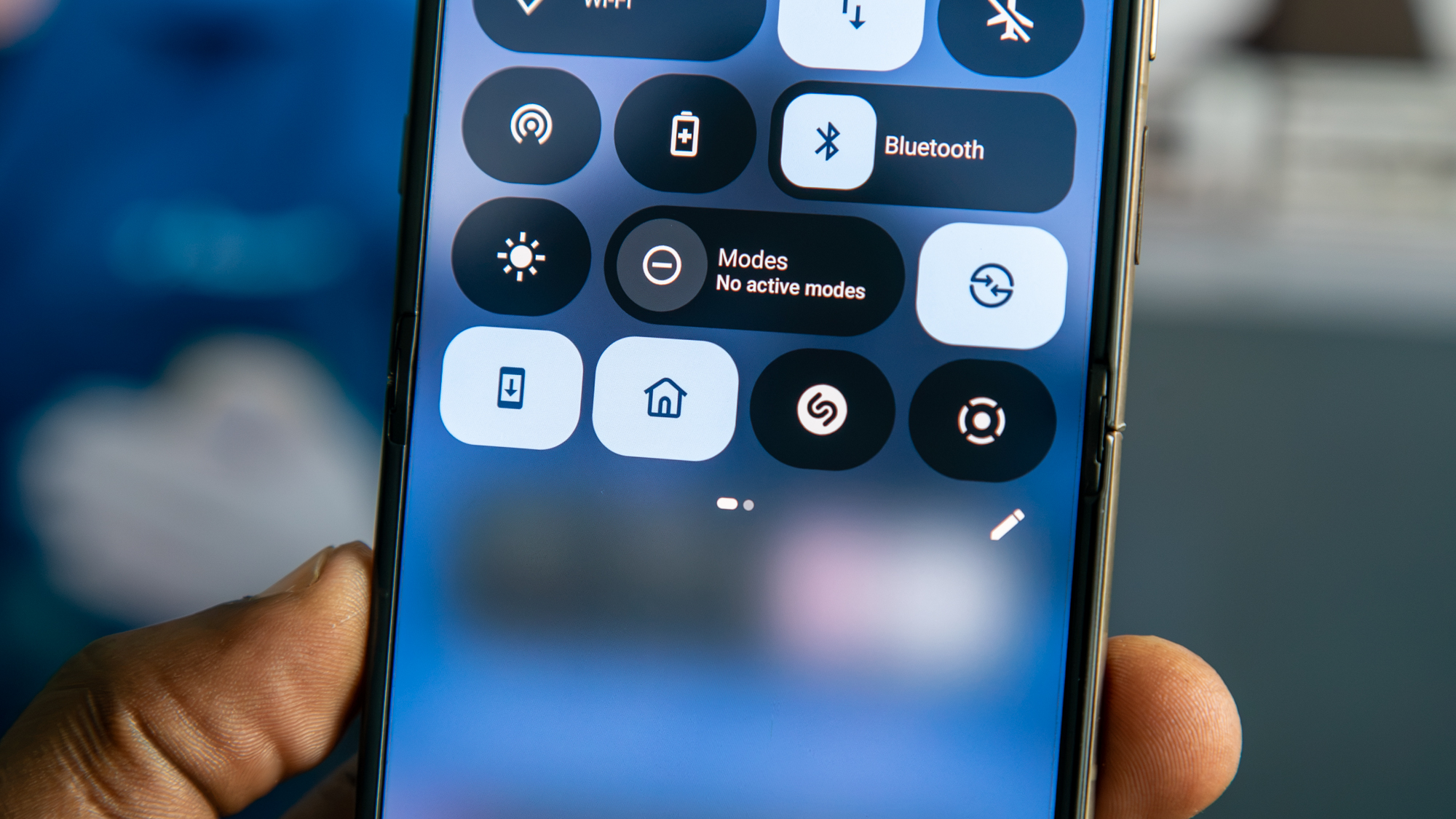
If Auto Shazam isn’t your preferred approach, or you only need to identify a single track quickly, Shazam provides various convenient methods. For instance, you can add the Shazam tile to your Quick Settings. This option lets you identify one song effortlessly, running in the background without launching the app.
This functionality is particularly useful on devices like the Motorola Razr, where I can utilize Quick Settings without needing to unlock the phone.
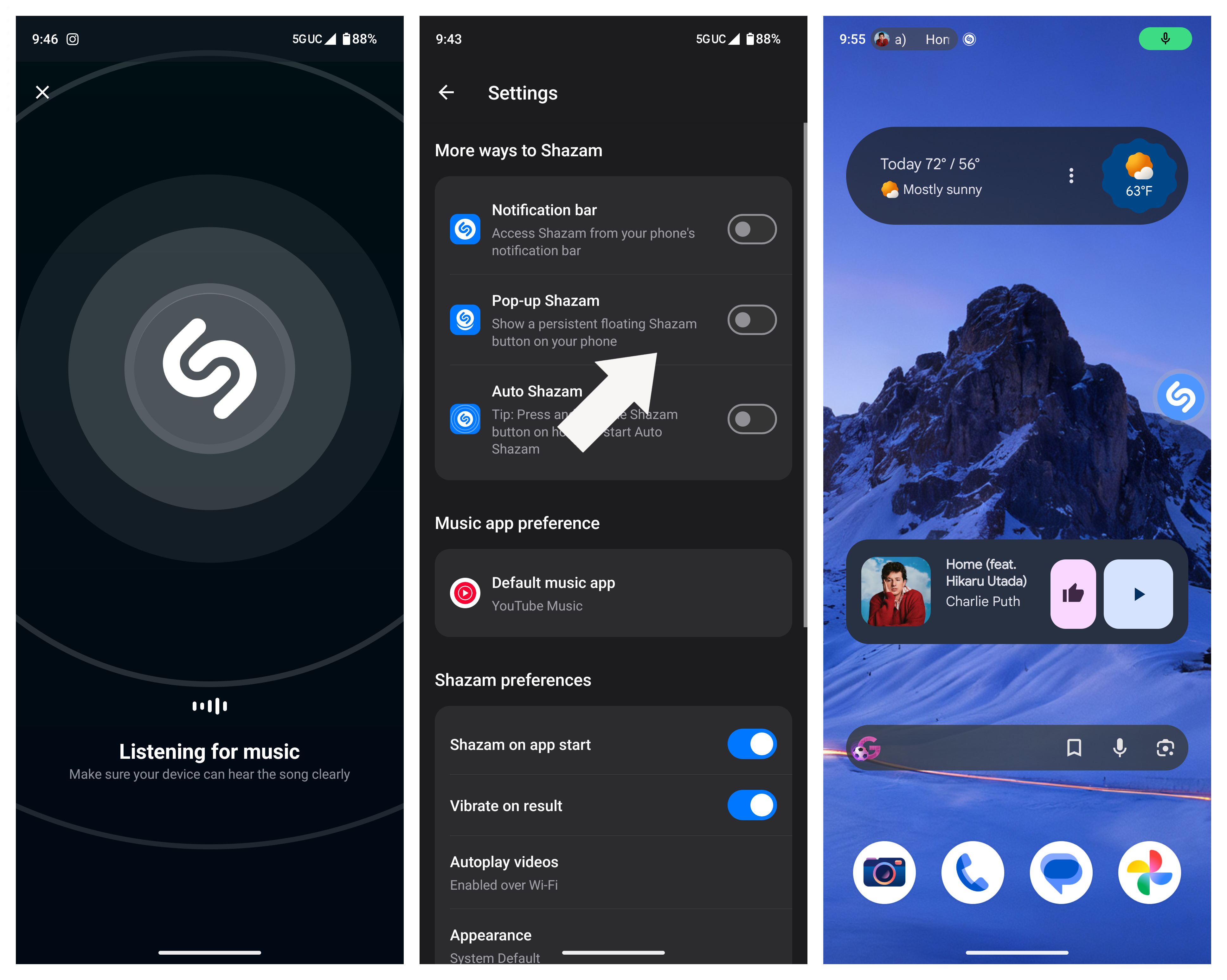
Another option is to enable a pop-up Shazam button on your screen, a floating feature that you can drag around and tap whenever needed. Activate this by going to Shazam settings and turning on Pop-up Shazam, granting the necessary permissions for it to overlay other apps.
The Call for Expanded Now Playing Functionality

It's a missed opportunity that Google hasn't brought Now Playing to more devices, and one can only hope other manufacturers will develop similar features. The on-device efficiency of Now Playing stands in stark contrast to Shazam’s need for continuous internet access, making it a more battery-friendly option. With advancements in chips like the Snapdragon 8 Elite Gen 5, other OEMs could easily accommodate this function.
Despite its limitations, Shazam remains a valuable alternative for anyone without a Pixel, becoming an essential app whenever I set up a new device and enriching my music library experience.